Tenants
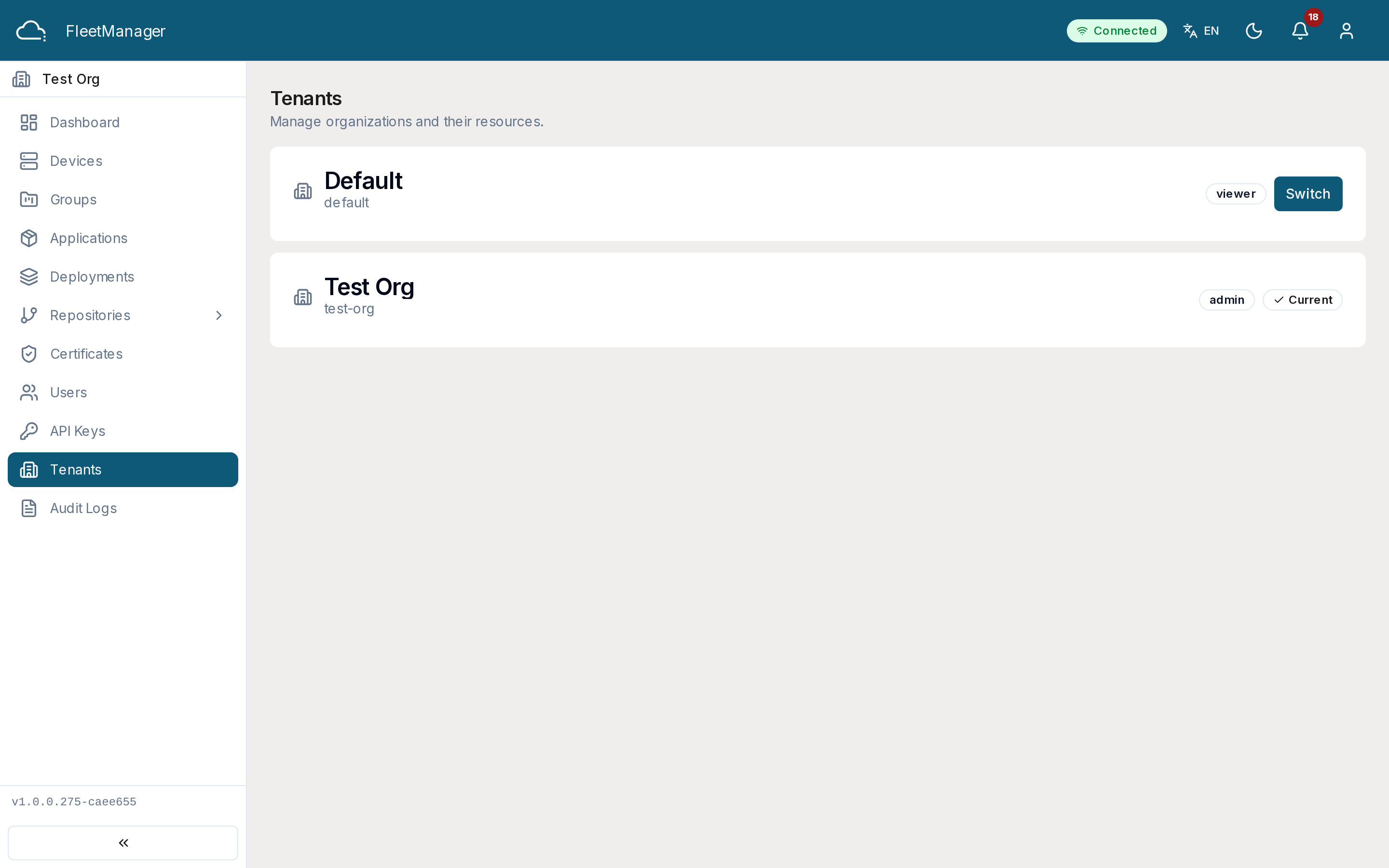
A tenant is an isolated organization. The Tenants module is where you switch between the tenants you belong to — and, for superadmins, where you administer all of them.
Who can access this: anyone who belongs to more than one tenant (to switch), and superadmins (to administer).
If you belong to more than one tenant
Section titled “If you belong to more than one tenant”You see a simple My Tenants list of the organizations you’re a member of, each with a Switch To action. Switching reloads the app in that tenant’s context — the URL slug changes and the sidebar updates to match your role there.
If you’re a superadmin
Section titled “If you’re a superadmin”You see every tenant with its name, slug, status, primary contact, and member/device counts. Status bullets filter by status; search matches name, slug, or contact.
Creating a tenant
Section titled “Creating a tenant”Click Create Tenant, enter the organization name, slug, and primary contact, and submit.
Managing a tenant
Section titled “Managing a tenant”- View its details.
- Enable / Disable it — disabled tenants are inaccessible to their members.
- Switch To it.
- Delete it:
- Soft delete works only when the tenant is empty.
- Force delete cascades — it removes the tenant’s members, users, devices, deployments, and applications. A summary reports exactly what was removed.
Purging empty tenants
Section titled “Purging empty tenants”Purge Empty Tenants finds tenants with no devices or deployments and lets you bulk-delete them, reporting per-tenant results.
Status values
Section titled “Status values”- active — usable; members can sign in.
- pending — newly created, awaiting activation.
- disabled — turned off by a superadmin.
- suspended — access withheld.