Getting Started
This page gets you from the sign-in screen to doing useful work.
Signing in
Section titled “Signing in”Fleet Manager uses single sign-on via Keycloak (OpenID Connect).
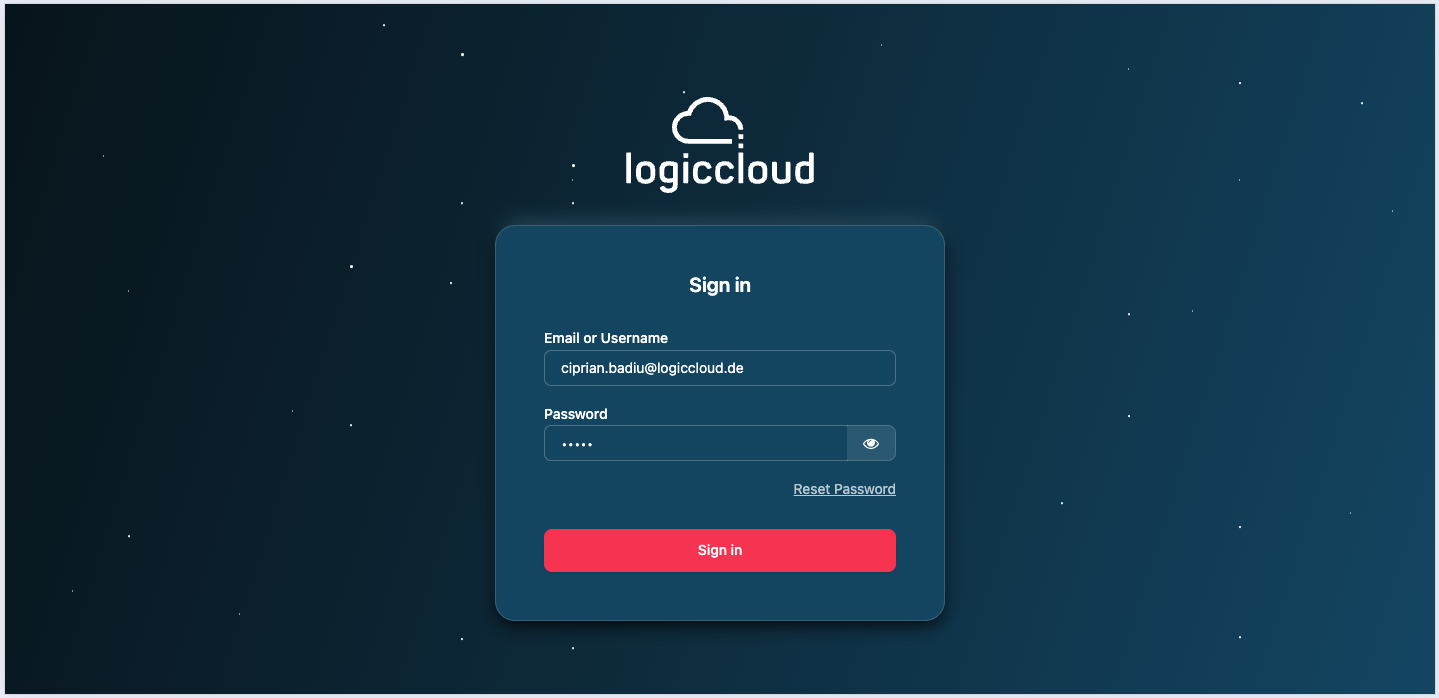
- Open the Fleet Manager application URL for your environment — your
administrator provides it (it looks like
https://fleet-manager.example.com). - You are redirected to the Keycloak sign-in page. Enter your username and password, or choose your organization’s identity provider (federated sign-in) if one is configured.
- After a successful sign-in you are returned to the app and land on your organization’s Dashboard.
If you don’t have an account, ask a tenant admin to invite you (see Users). Invitations arrive by email with a link to join.
Finding your way around
Section titled “Finding your way around”- The sidebar on the left is the main navigation. It only lists the modules your role can use — see Roles & Access.
- The top of the sidebar shows your current tenant (organization).
- The header gives access to your Profile, security settings, and sign out.
Your tenant context
Section titled “Your tenant context”Every page is scoped to one organization. You can see this in the address bar:
routes look like /<your-org>/dashboard, /<your-org>/devices, and so on,
where <your-org> is your organization’s slug.
Switching tenants
Section titled “Switching tenants”If you belong to more than one tenant — or you hold a system role (SUPERUSER/SUPPORT) — you can switch the active organization:
- Click the current tenant name at the top of the sidebar, or open the Tenants module.
- Choose the organization you want to work in.
- The app reloads in that tenant’s context; the slug in the URL updates and the sidebar refreshes to match your role there.
Superadmins can return to their default organization at any time. Tenant switches are recorded in the Audit Log.
Where to go next
Section titled “Where to go next”Pick the path that matches your role:
- Operator / Viewer: Devices → Applications → Deployments
- Tenant Admin: Users → Repositories → Certificates → Settings
- Superadmin: Tenants → Audit Logs
- OT Engineer: Margo Overview → Onboarding