Repositories
Repositories are the sources of your application catalog. Fleet Manager syncs the registries you add here and turns what it finds into deployable Applications.
Who can access this: admins and operators.
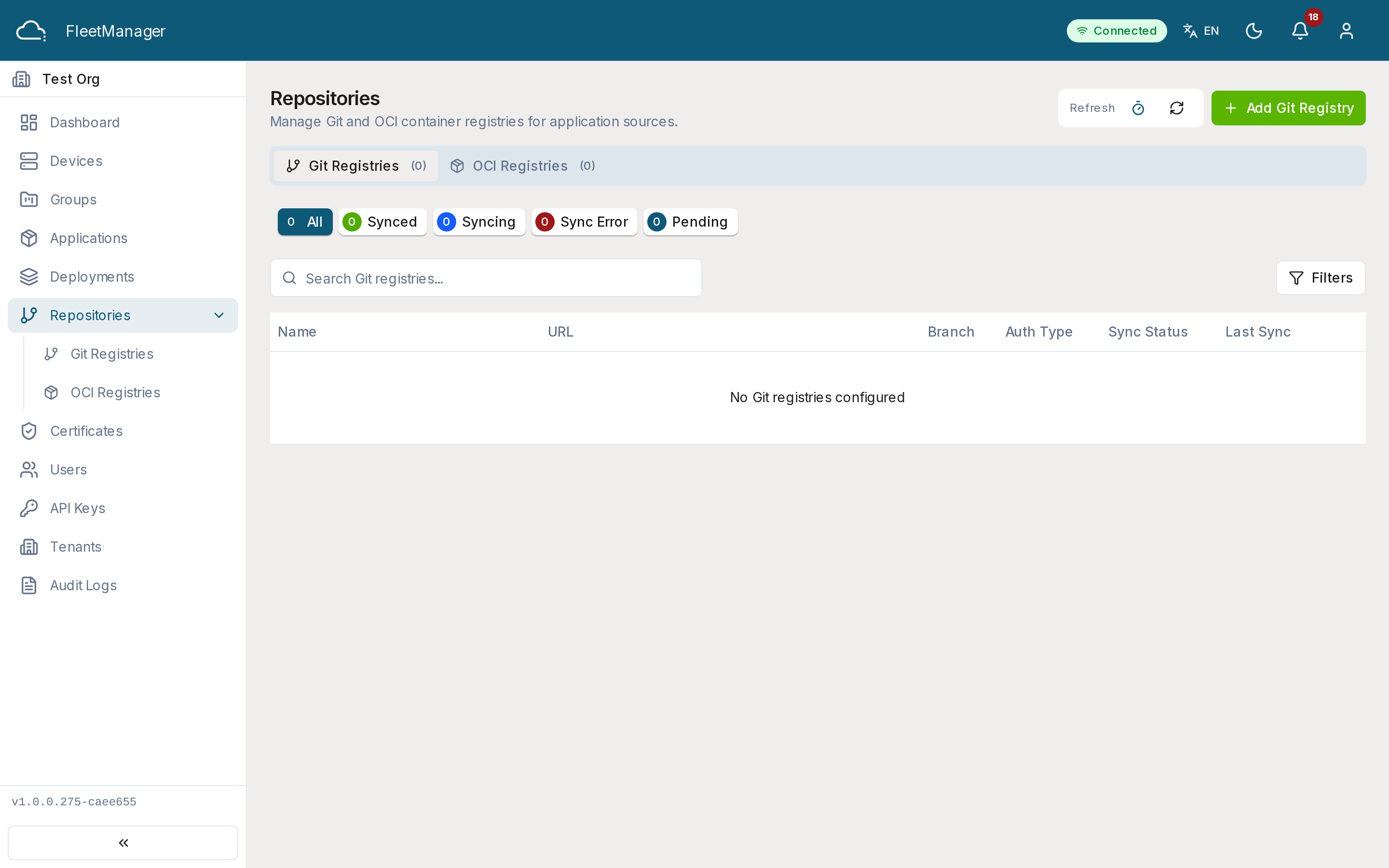
The module has two tabs: Git Registries and OCI Registries. Each list shows the registry name, URL, scope (global or tenant), enabled state, and sync/health status. Status bullets summarize the counts and let you filter; search matches name or URL.
Git registries
Section titled “Git registries”A Git registry points at a repository that contains Margo application manifests.
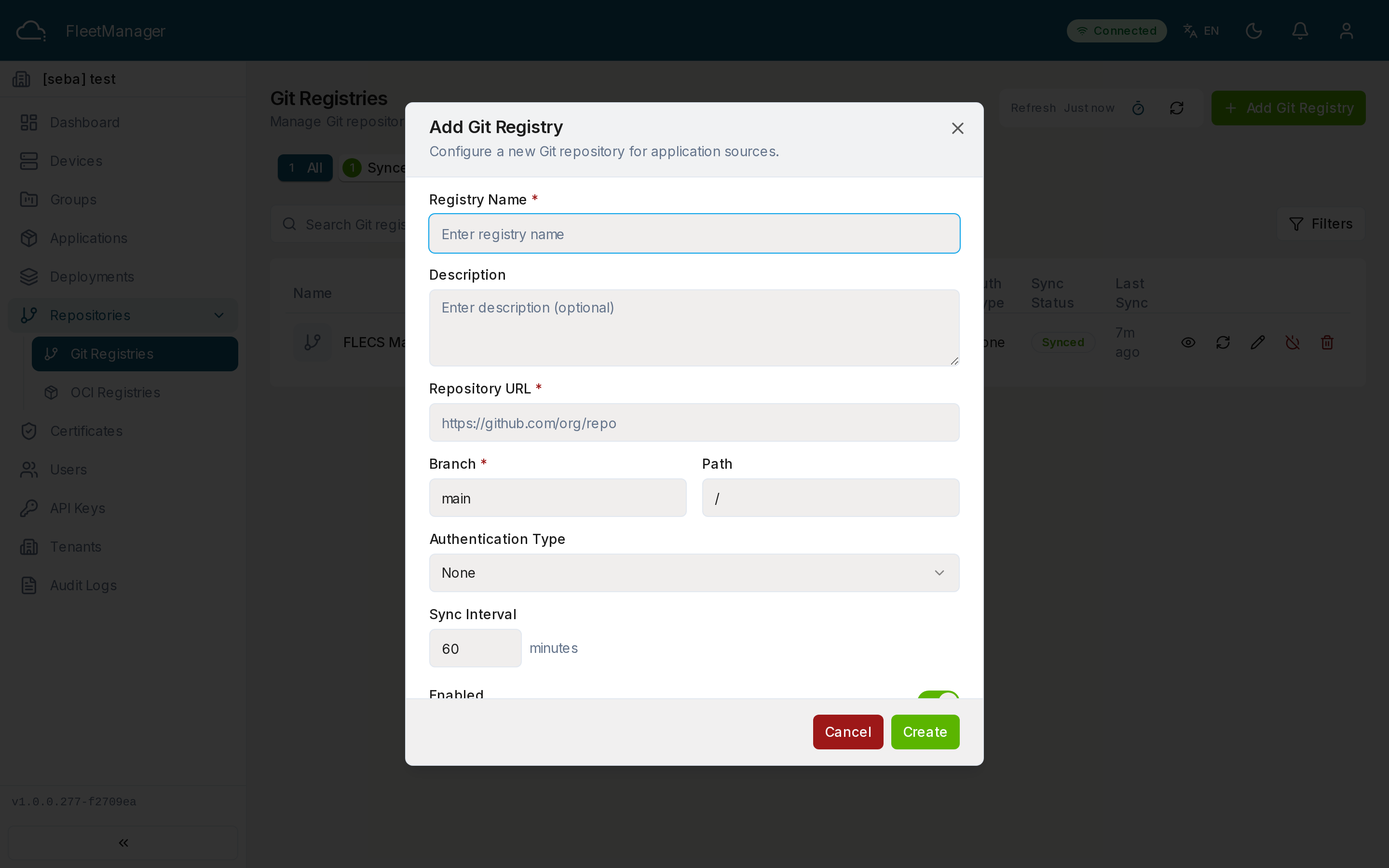
To add one, open the Git Registries tab and click Add Git Registry, then provide:
- Name and optional description
- Repository URL, branch, and path
- Auth type —
NONE, HTTPS token, or SSH key (with the credential if required) - Sync interval (minutes) and an enabled toggle
On save, the registry syncs on its schedule; you can also Sync it on demand. A sync scans the repository and imports/updates the applications it finds.
Sync status: synced, syncing, error, or pending (awaiting first sync).
OCI registries
Section titled “OCI registries”An OCI registry points at a container/chart registry.
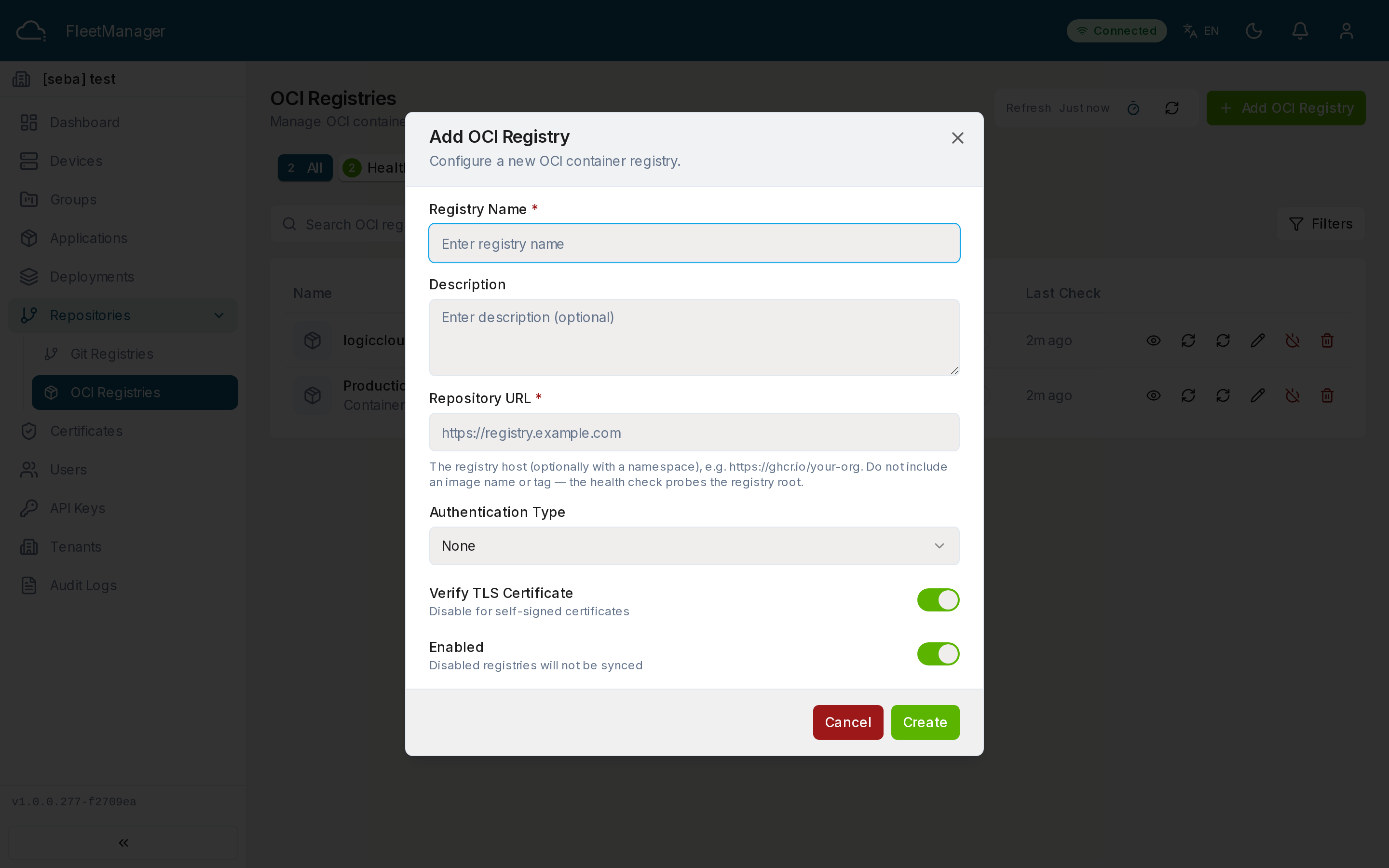
To add one, open the OCI Registries tab and click Add OCI Registry, then
provide the name, URL, auth type (NONE, basic, or token) with any
credential, a verify-TLS toggle, and an enabled toggle.
Use Health Check to verify connectivity and Sync to import or update applications. After a sync you’ll see how many applications were imported and updated.
Health status: healthy, unhealthy, unknown, or checking.
Managing registries
Section titled “Managing registries”- Edit a registry’s fields (scope is fixed at creation).
- Enable / Disable without deleting — disabled registries don’t sync or feed the catalog.
- Sync manually at any time.
- Delete a registry.
A registry is either global (provided platform-wide and visible to every tenant) or tenant (only yours). Scope is set when the registry is created.