Certificates
The Certificates module manages the PKI that secures device communication — your tenant’s certificate authority (CA) and the per-device certificates issued from it.
Who can access this: admins and operators.
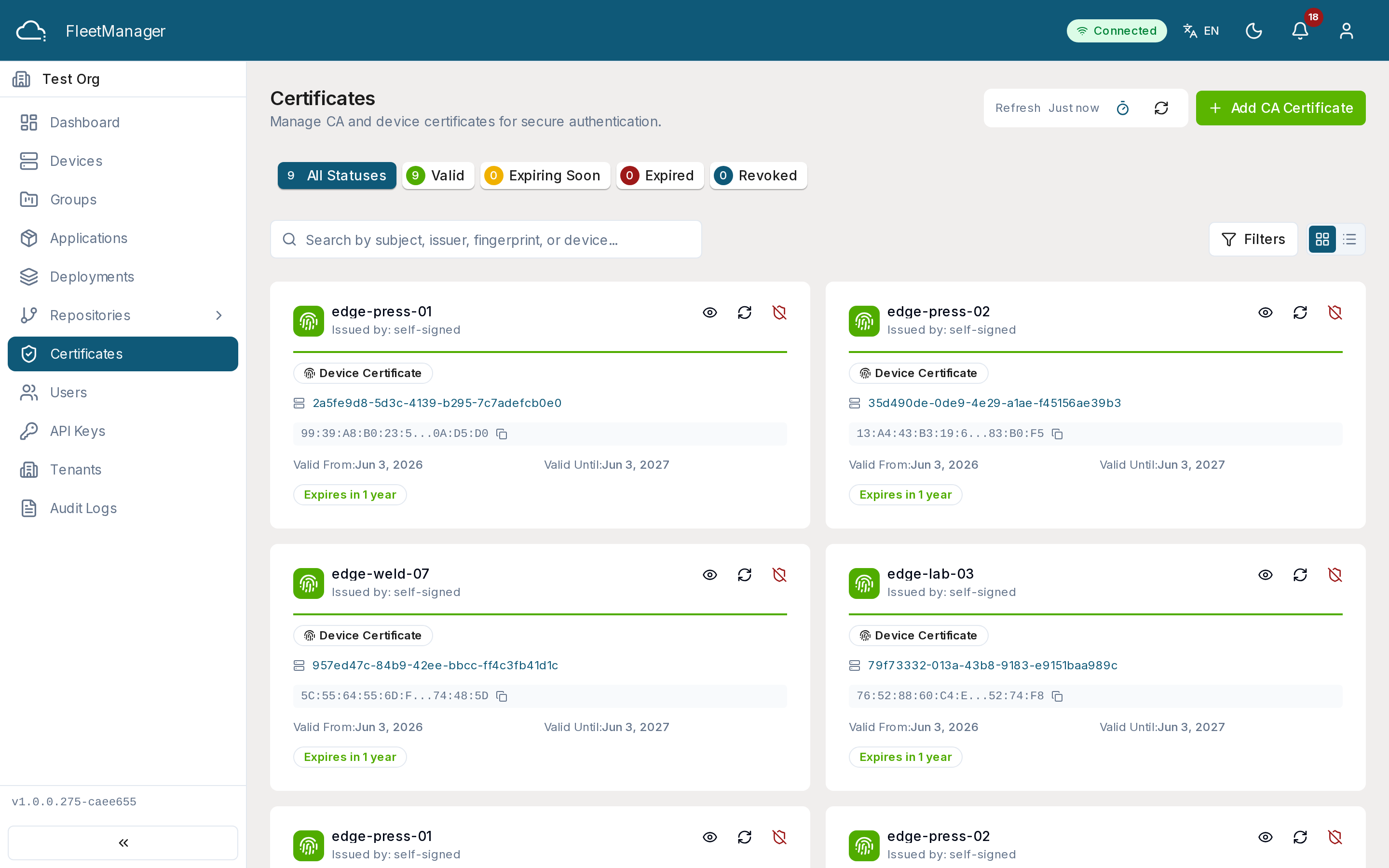
What you see
Section titled “What you see”Certificates are shown as cards or rows (toggle the view) with the subject, issuer, type (CA or device), status, and expiry. Status bullets summarize valid / expiring / expired / revoked counts and filter the list, and search matches subject, issuer, fingerprint, or device name. A banner warns you when any certificate expires within 30 days.
The certificate authority
Section titled “The certificate authority”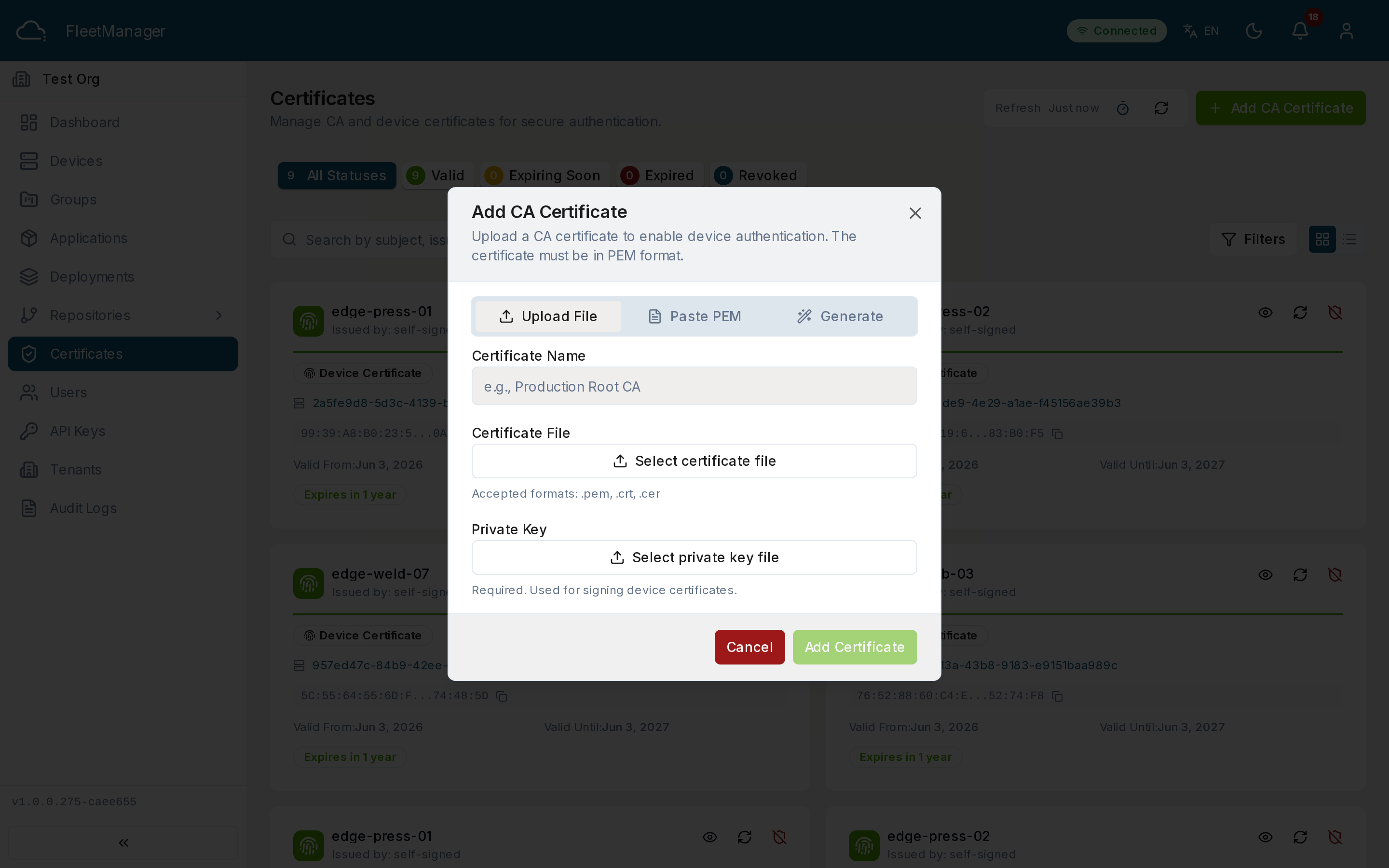
Devices need an active CA before they can communicate securely. To set one up, click Add CA Certificate and choose either:
- Import — paste an existing PEM certificate and private key (plus an optional passphrase), or
- Generate — enter a common name, organization, country, and validity period, and let Fleet Manager create the CA.
Device certificates are then issued from this CA automatically as devices enroll — there’s no manual step per device.
Working with certificates
Section titled “Working with certificates”Click a certificate to view its full details: validity dates, serial number, algorithms, subject alternative names, and fingerprint (with copy), plus the raw PEM for a CA.
- Renew — extend a CA’s validity.
- Revoke — invalidate a device certificate.
- Delete — remove a CA.
Status values
Section titled “Status values”- valid — within its validity window and not revoked.
- expiring — less than 30 days from expiry.
- expired — past its expiry date.
- revoked — manually invalidated.