Devices
The Devices module is where you enroll edge devices and manage them through their lifecycle.
Who can access this: all roles (viewers read-only; operators can edit; admins can delete).
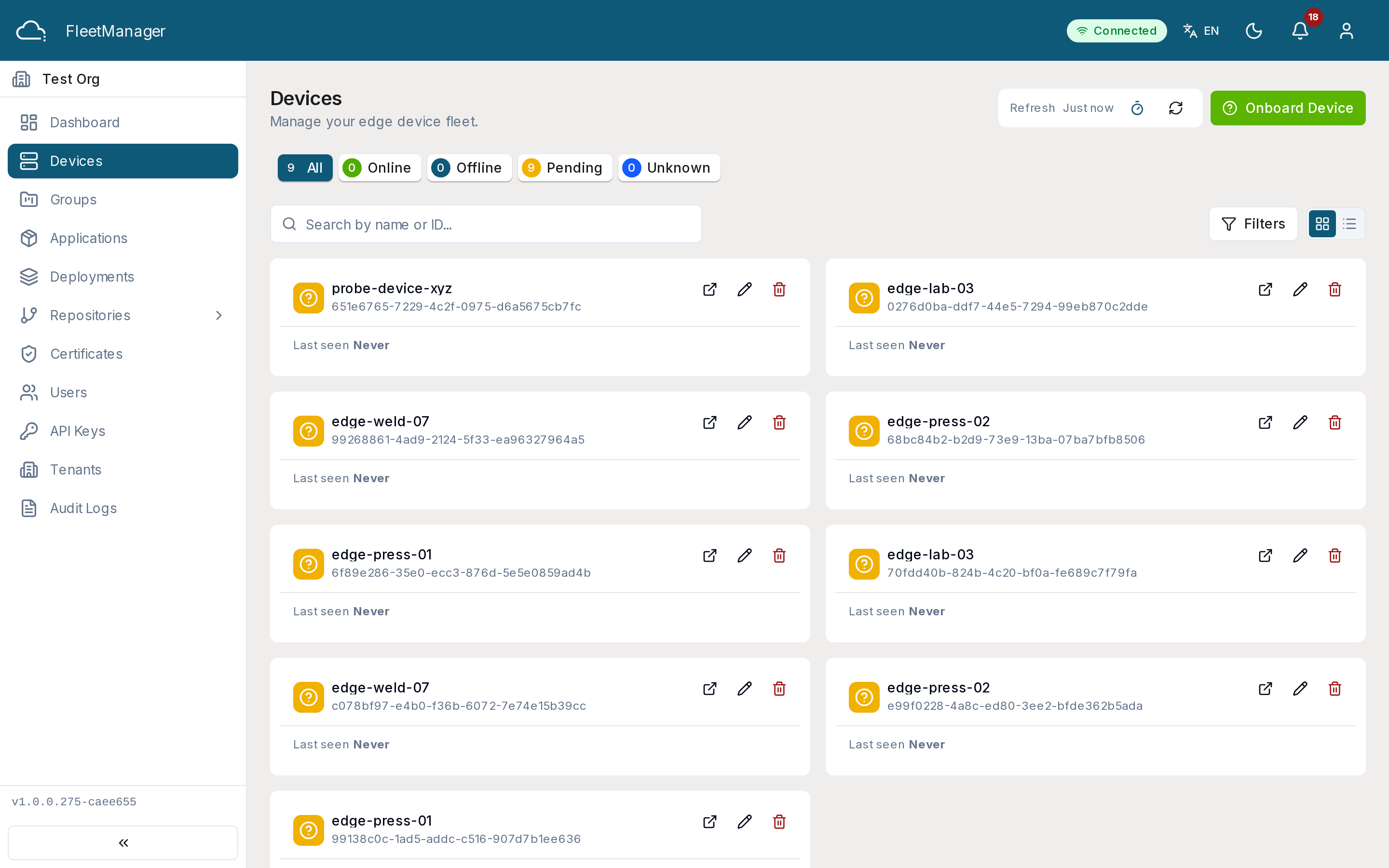
What you see
Section titled “What you see”Devices are shown as cards (switch between grid and list with the view toggle). Each device shows its name, client ID, status, labels, and last seen time.
You can narrow the list with:
- Search by name or client ID.
- Status filter — online, offline, pending, unknown, error.
- Label filters — pick a label key, then a value, to show only matching devices (or show only unlabeled devices).
Onboarding a device
Section titled “Onboarding a device”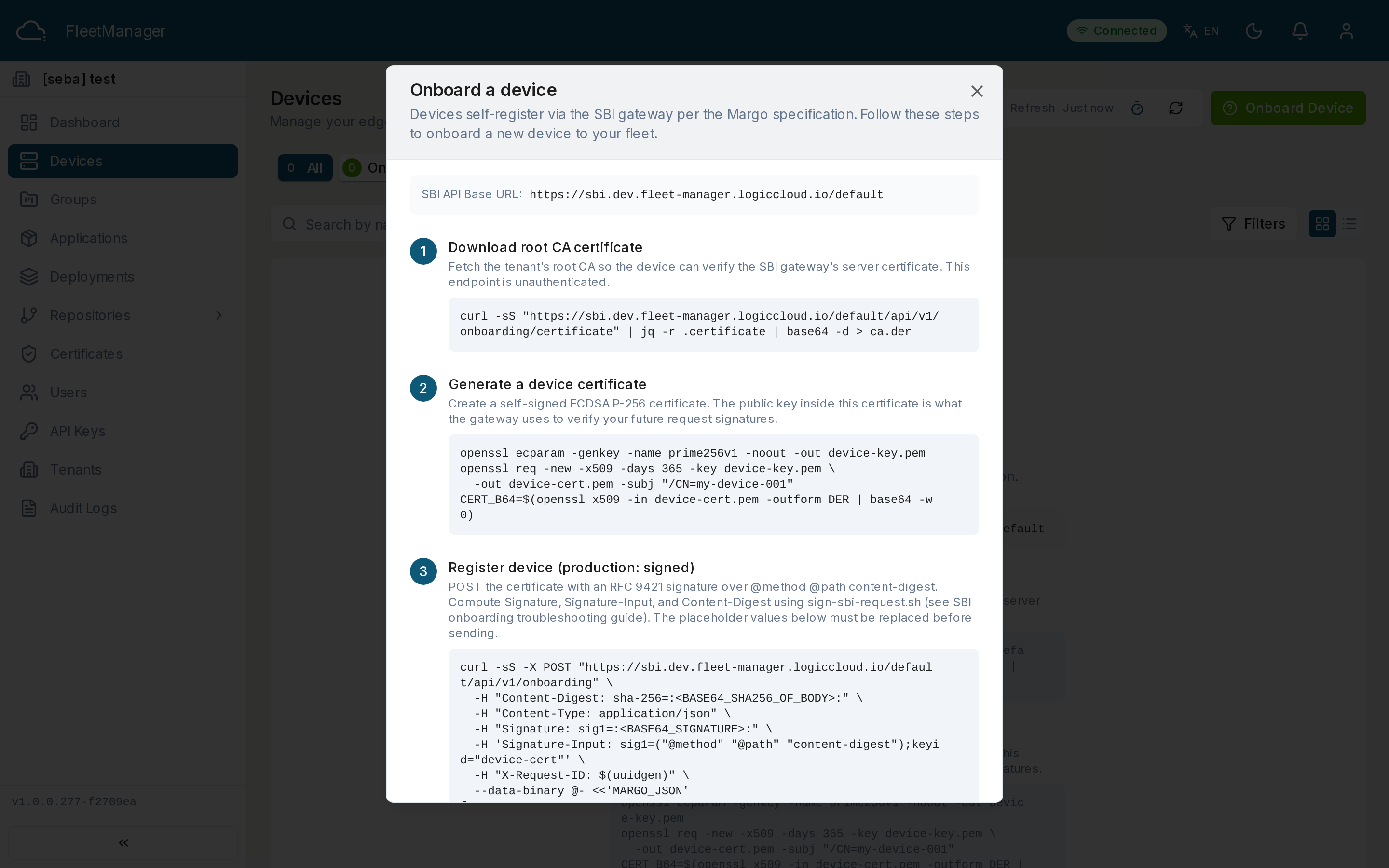
- Click Onboard Device. A dialog opens with a ready-to-run shell command
(a
curlsnippet). - The command contains a one-time onboarding token scoped to your tenant and the registration endpoint.
- Run the command on the device. It registers with the platform and begins reporting status.
- The device appears in the list as pending, and moves to online once it checks in.
Labels
Section titled “Labels”Labels are key = value pairs you attach to devices. They drive
Groups and deployment targeting. Edit a device to add or remove
labels.
Actions
Section titled “Actions”- Edit — rename the device and change its labels.
- Delete — soft-deletes the device after confirmation (it is logically removed, not purged). Admins only.
Device detail
Section titled “Device detail”Open a device to see tabbed sections:
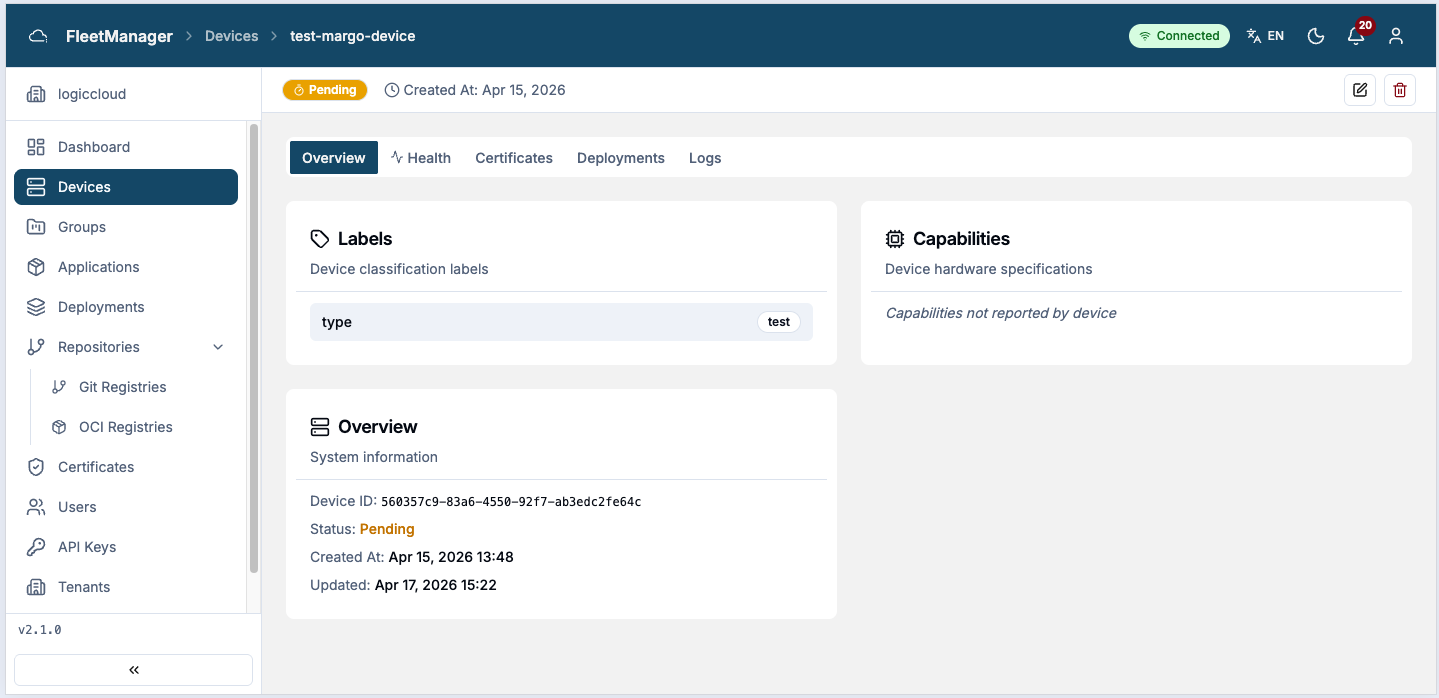
- Overview — labels, reported capabilities (CPU, memory, storage, …), and metadata (ID, status, created/updated/last-seen).
- Health — telemetry and health status over time. See Device Telemetry for how a device sends this data to Fleet Manager.
- Certificates — the device’s certificates with status, issuer, fingerprint, and validity dates.
- Logs — activity for this device.
Status values
Section titled “Status values”online, offline, pending, unknown, error.