API Keys
API keys let external systems and scripts call the Fleet Manager API without a user signing in interactively.
Who can access this: admins only. The API Keys menu item opens Settings → Security.
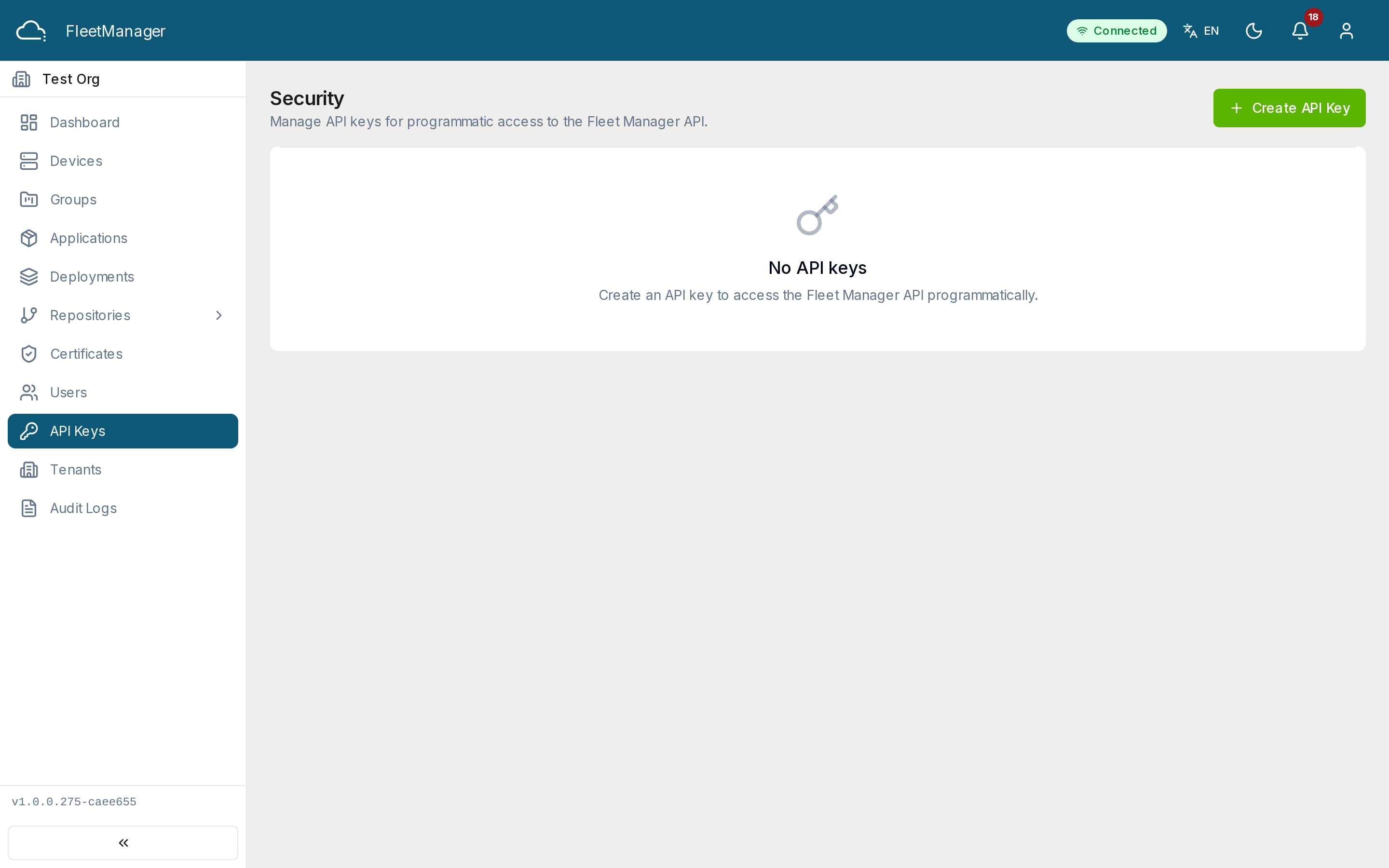
What you see
Section titled “What you see”A table of the tenant’s API keys showing each key’s name, a masked prefix, its permissions (scopes), and its last used, expiry, and created dates.
Creating an API key
Section titled “Creating an API key”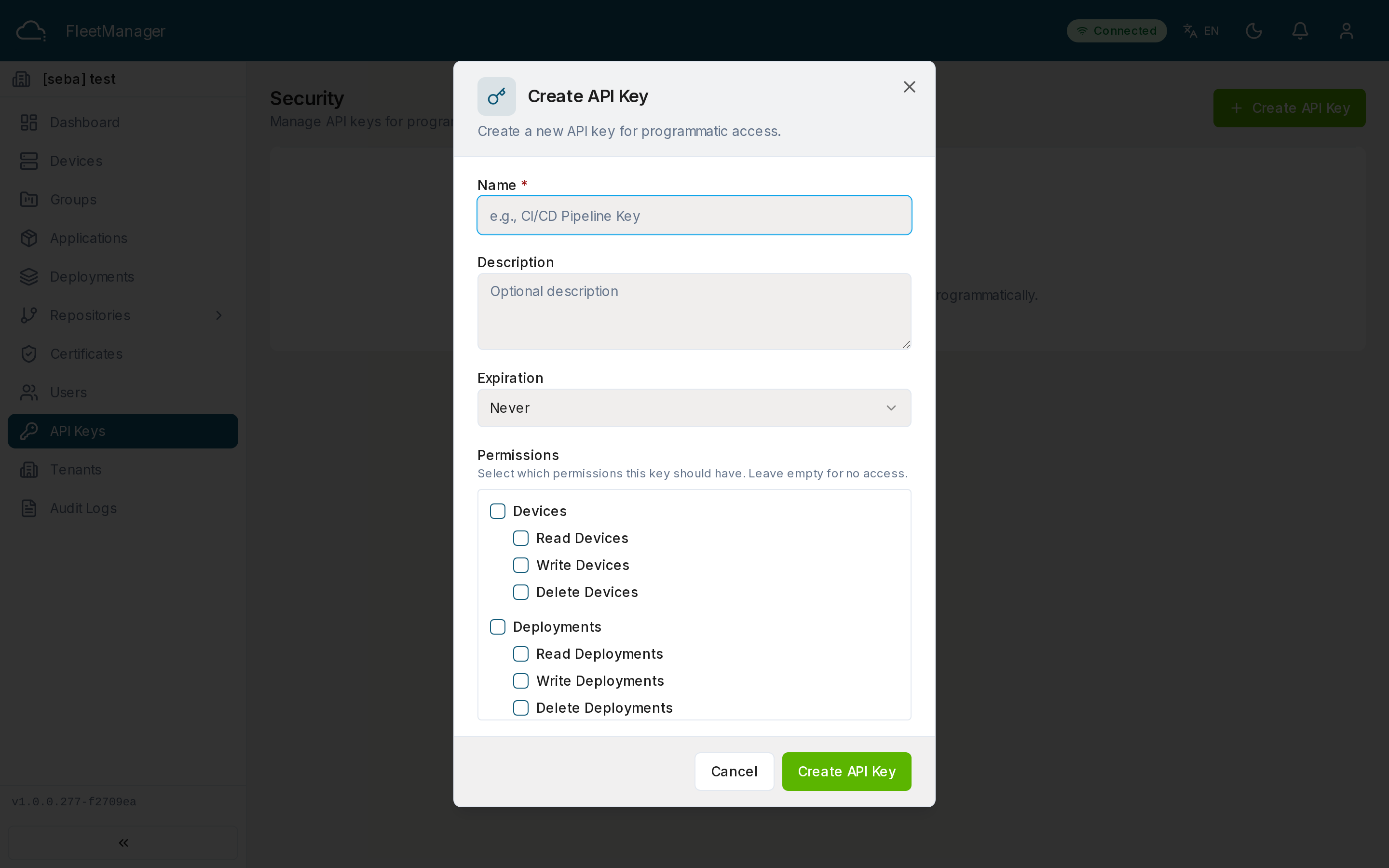
- Click Create API Key.
- Give it a name, select the permissions (scopes) it should have, and optionally set an expiry.
- Submit. The full key is shown once — copy it and store it securely. You won’t be able to see it again.
Managing keys
Section titled “Managing keys”- View — inspect a key’s permissions and dates.
- Revoke — invalidate a key immediately. Requests using it then fail with an authentication error.
Status values
Section titled “Status values”- active — valid and usable.
- revoked — invalidated; no longer accepted.
- expired — past its expiry date.